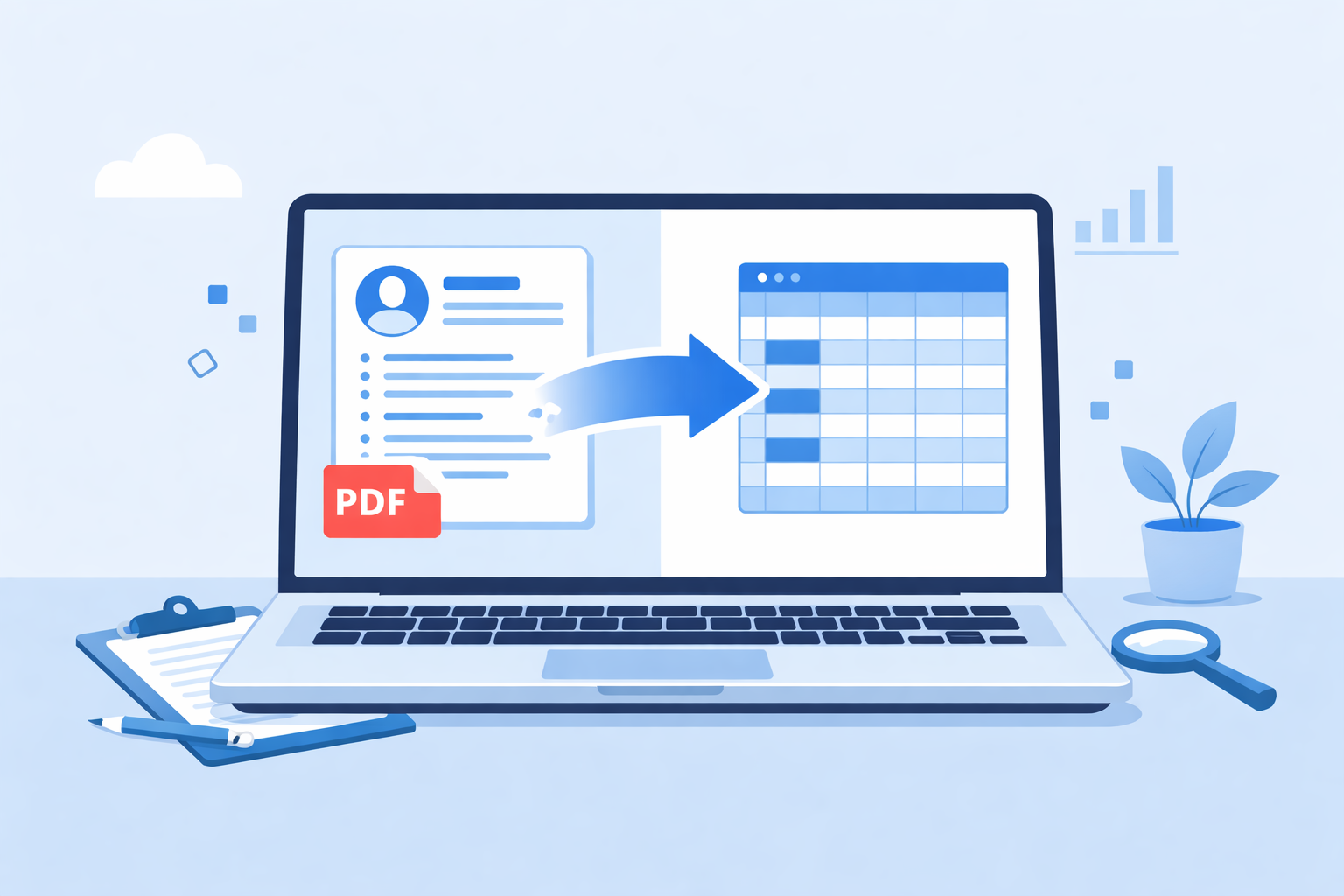
Step-by-Step Conversion
1. Collect Your PDF, DOC, DOCX Resumes
Gather all resumes you want to convert. Text-based PDF, DOC, DOCX work best; avoid scanned images for better accuracy.
2. Upload to Resume Parser
Use a tool like Resume to Excel to upload multiple resumes at once. Batch upload saves time.
3. Extract Structured Data
The parser will extract names, contacts, skills, education, and experience automatically.
4. Download Excel Spreadsheet
Download your structured Excel file. Each resume is a row — easy to filter, sort, and review.
Tips for Accuracy
- Use clear, text-based PDF, DOC, DOCX files
- Avoid scanned image-only resumes
- Review extracted data occasionally
- Standardize column names in Excel